
FIELD SERVICE REPORTING
Field Service Report App: An On-Site Checklist for Technicians
A field service report app should help technicians record what happened at a job while the details are still fresh. A clear service visit report helps someone who was not on site understand the request, the findings, the work completed and anything that still needs attention.
The app alone does not guarantee a complete report. Teams need a practical process technicians can follow across routine visits, repairs and jobs that require follow-up. Use the checklist below to evaluate a technician reporting app on a real job before introducing it across your team.
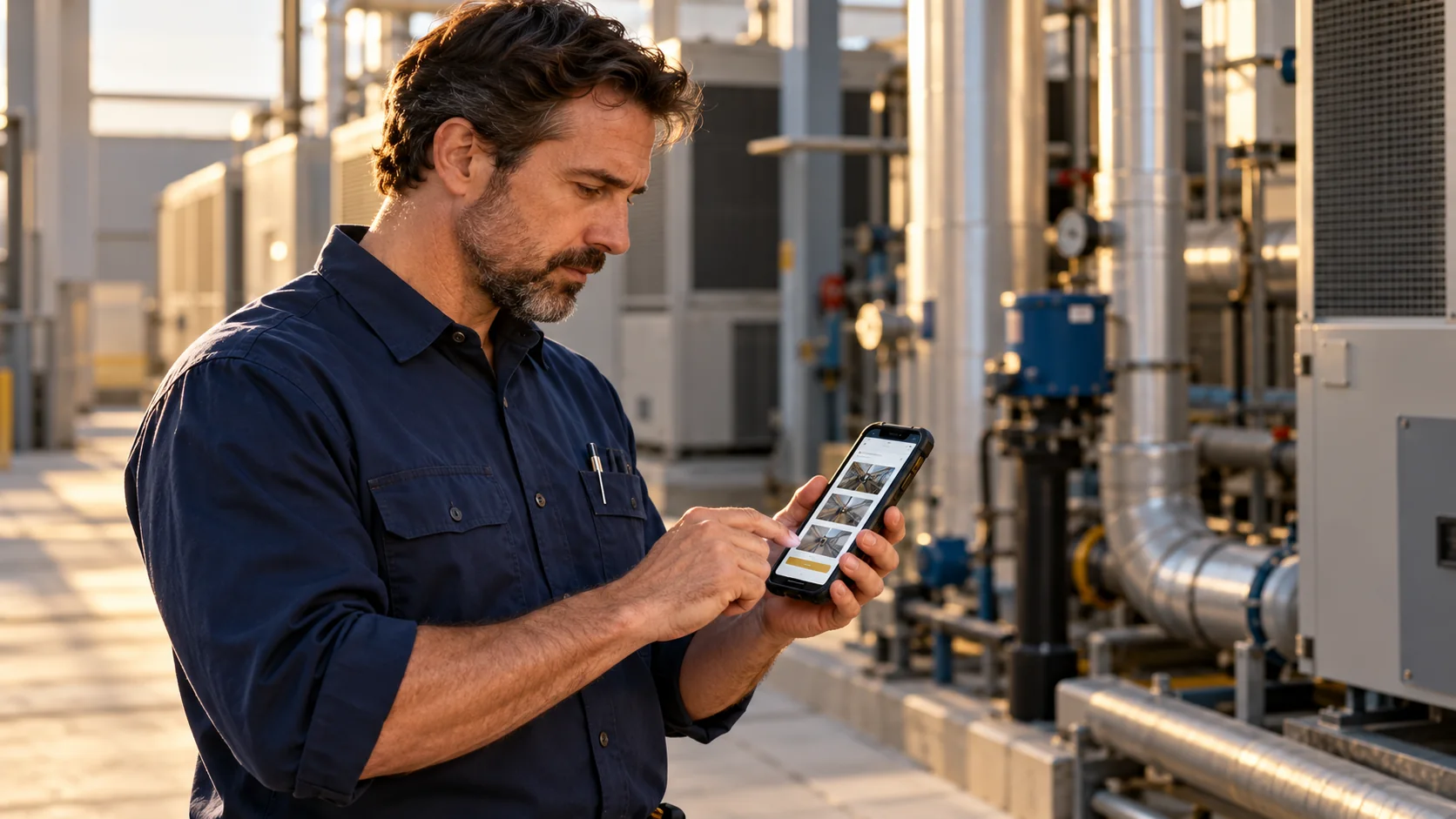
What should a field service report include?
The right fields depend on the trade and the work. A useful report commonly identifies:
- Customer, site or work order
- Date, time and technician
- Reason for the visit
- Conditions found
- Work performed
- Parts or materials used, when relevant
- Photos or other supporting evidence
- Completion status
- Open items and next steps
- Customer or site acknowledgment, when your process requires it
The report should tell a clear job story without asking technicians to complete fields that do not apply.
Test the app with a real job
Do not evaluate field service reporting software only from a feature list or sales demonstration. Ask a technician to document a representative job using the device they would use at work.
Observe the steps. Note where the technician has to stop, enter information twice or remember details to add later.
Before the visit
- Confirm the job can be identified correctly.
- Check that the customer, site or asset details are clear.
- Review any instructions the technician needs before starting.
- Decide how the report should show a job that cannot be completed as planned.
During the visit
- Record the issue or reason for the visit.
- Describe relevant findings before starting the work.
- Add notes as work progresses, rather than relying only on memory at the end.
- Capture photos that help explain the condition or work.
- Add a short caption to identify what each important photo shows.
- Record parts or materials when they matter to the customer or the next visit.
- Note any change in scope or work that still needs approval.
- Record time on site, location or hazards when your process requires it.
Before leaving the site
- Summarize what was completed.
- Mark incomplete work clearly.
- Record why an item remains open.
- Add the next action or responsible person when known.
- Review the report for missing details and unclear wording.
- Complete any acknowledgment step required by your process.
A short review before handoff can prevent avoidable calls to the technician later.
Copyable field service report checklist
Use this as a starting point for your reporting process or app evaluation. Adapt it to the work you perform.
JOB
- Customer or account:
- Site or location:
- Work order or job number:
- Date and time:
- Technician:

REQUEST
- Reason for visit:
- Customer-reported issue:
- Priority or relevant instruction:

FINDINGS
- Condition found:
- Equipment or area inspected:
- Relevant readings or observations:
- Hazards or access conditions, if relevant:

WORK
- Work performed:
- Parts or materials used:
- Tests or checks completed:
- Result:

PHOTO EVIDENCE
- Photo 1 caption:
- Photo 2 caption:
- Photo 3 caption:
- Evidence still needed:

CLOSEOUT
- Status: Complete / Follow-up required / Unable to complete
- Open items:
- Reason work remains open:
- Recommended next step:
- Customer or site acknowledgment, if required:
- Report reviewed by:
Make photo evidence understandable
A photo is more useful when the report explains what it shows. A reviewer should not have to guess which unit, room or condition appears in an image.
Use short, factual captions such as:
- “Unit 2 filter before replacement”
- “Leak visible below the sink connection”
- “Repaired section after testing”
If a photo documents an unresolved issue, say so in the caption and in the open-items section. Keep the report clear about what was observed, what work was done and what remains.
For a practical photo sequence, see our guide to before-and-after photo reports.
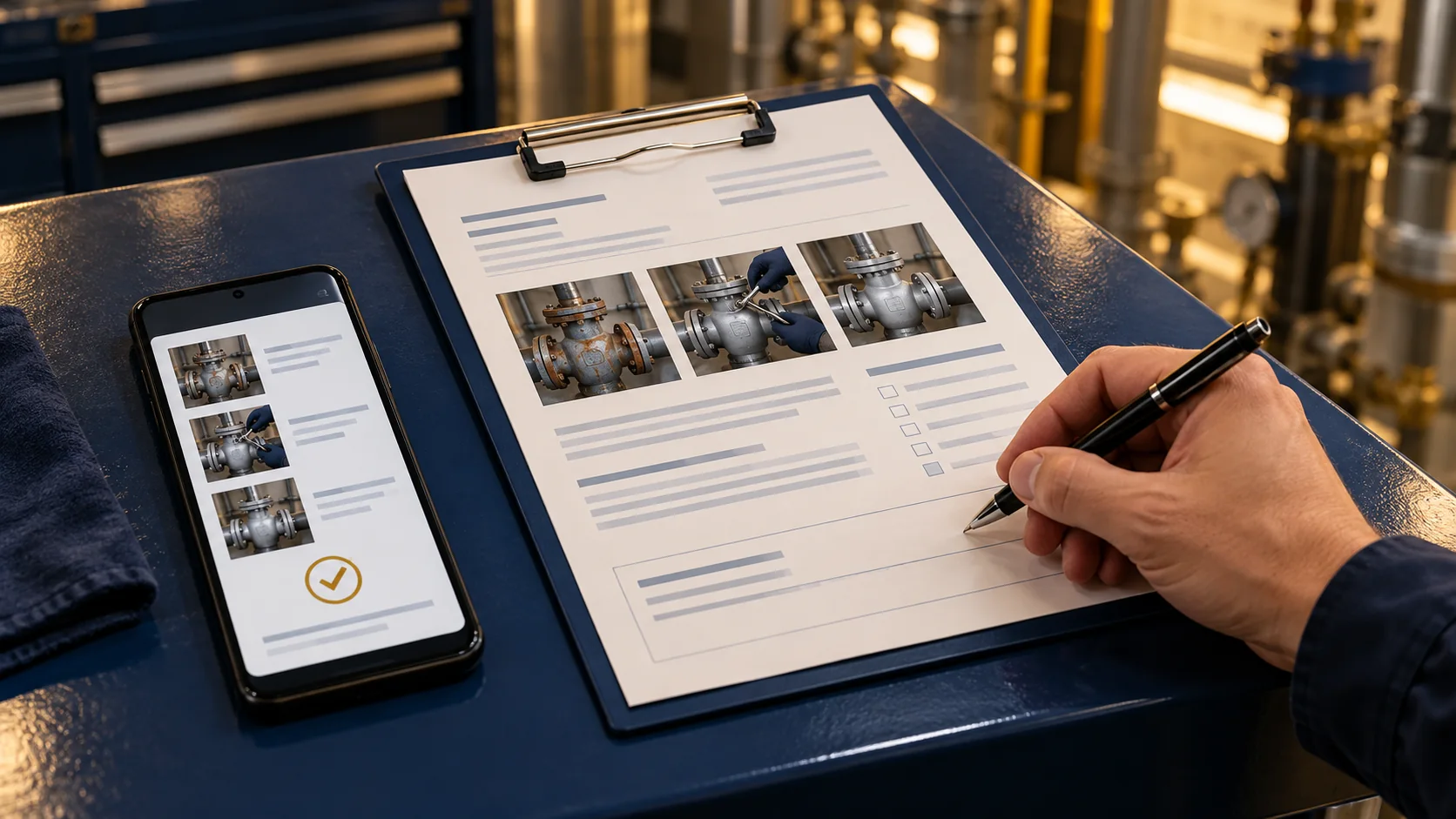
Check the report before it reaches the office
Ask a reviewer who was not at the job to read the report and answer these questions:
| Reviewer question | Why it matters |
|---|---|
| What was requested? | Confirms the report identifies the reason for the visit. |
| What did the technician find? | Shows whether the observed condition is clear. |
| What work was completed? | Separates actions taken from findings. |
| What evidence supports the report? | Helps the reviewer interpret photos and notes. |
| Is anything still open? | Makes incomplete work visible. |
| What should happen next? | Supports a clear follow-up handoff. |
If the reviewer cannot answer these questions, identify which field, caption or handoff step needs improvement. Start with our field service report template for a reusable structure.
Questions to ask before choosing an app
| Ask the provider | Why it matters |
|---|---|
| Which devices and operating systems support field capture today? | Confirms the app works on the devices your technicians use. |
| Can you demonstrate the workflow on a job like ours? | Shows how the app handles your actual work, not only a prepared demo. |
| How do photos and captions appear in the finished report? | Helps you judge whether evidence will make sense to reviewers and customers. |
| How are incomplete jobs marked for office review? | Clarifies how open work is handed off. |
| What happens when connectivity is unavailable? | Offline behavior varies by product; test the workflow your team needs. |
| What does the plan include, and what limits apply? | Helps estimate the cost for your team’s expected use. |
| How can reports be exported, and how long is data retained? | Clarifies access to records and retention before you rely on the app. |
Get clear answers for your requirements before choosing a tool. Do not assume that a feature works the same way across products or plans.
How Fieldnox fits this workflow
Fieldnox currently provides an Android app for field capture and a web reports workspace. The workspace is accessed through a browser; its suitability for every mobile browser has not been established here. Teams that require native iOS field capture should verify that requirement before choosing Fieldnox.
Signed-in users can review work, evidence and signatures in the reports workspace and prepare the final PDF. Fieldnox focuses on field reporting rather than a complete dispatching or invoicing system.
Offline behavior, data retention, detailed access controls and exports beyond report PDFs are not specified in the current public product information. Confirm any requirements in these areas before relying on them.
A simple rollout plan
Start with a small group and a few representative jobs.
- Choose one routine job and one job that may require follow-up.
- Have technicians complete both reports using the app.
- Ask an office reviewer to answer the six questions above.
- Record confusing fields, missing details and repeated work.
- Adjust the reporting process before expanding it to the rest of the team.
An app may fit when technicians can document work consistently and the office can understand the result without repeatedly chasing missing information.
Frequently asked questions
What is a field service report app?
It is an app used by field teams to record details about a service visit, such as the request, findings, work performed, evidence and follow-up. The exact functions vary by product.
What should technicians record in a service report?
Identify the job, explain what was found and done, record the outcome, and make open work clear. Add photos, materials, readings or acknowledgment details when they are relevant.
Should technicians add photos to every report?
Only when photos help explain the condition, work or result. Useful images should be relevant and clearly captioned. Follow customer, site and company rules for taking and storing photos.
Does every field service report app work offline?
No. Offline availability and synchronization behavior vary. Ask the provider to demonstrate the exact workflow your team needs, including what happens when the device reconnects.
Does Fieldnox have an iOS field app?
Fieldnox field capture is currently provided through its Android app. The reports workspace is accessed in a browser; verify device compatibility before relying on a mobile-browser workflow.
Start with a clear report
Test the workflow on real jobs, review completed reports with technicians and office staff, and record unanswered questions before making a decision.
Start with the free field service report template and completed example.
To access the Fieldnox reports workspace, sign in to Fieldnox. Sign-in is required.