
FIELD SERVICE REPORTING
How to Choose Field Service Report Software: 9 Checks for Service Teams
Field service report software can help a service team document work, organize evidence, and prepare a clear handoff. But a polished feature list does not tell you whether technicians can complete reports at the job site—or whether the office can use them afterward.
Start by testing tools against real jobs and the workflow your team needs.
About this guide: Fieldnox publishes this guide and offers a field reporting product with an Android field app and a web reports workspace. The same checks below apply to Fieldnox. The field-capture app is currently for Android; the web reports workspace is accessed in a browser. Fieldnox focuses on reporting rather than offering a complete dispatching and invoicing suite.
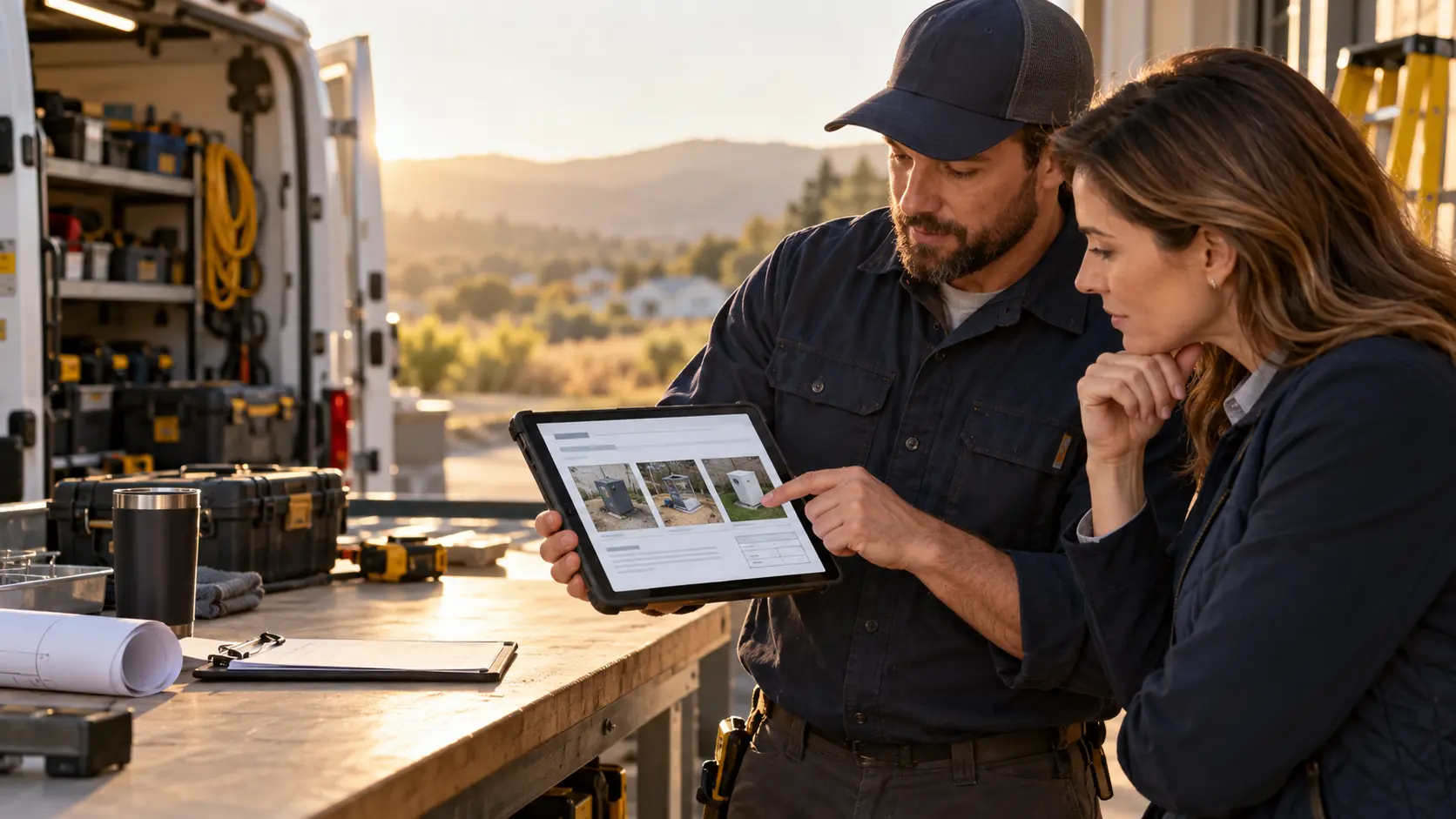
First, decide whether you need software
A template, form, or spreadsheet may be enough when one person handles a small number of straightforward jobs and can reliably organize the records.
A reporting app may be worth evaluating when technicians repeatedly document work in the field, photos are separated from job details, or the office spends time clarifying what happened.
A broader field service management platform may fit better when your main need also includes dispatching, scheduling, customer management, or invoicing. These categories can overlap, so compare the actual workflows offered by each product.
1. Start with reports from your own jobs
Collect two or three recent reports: one routine job and one that required follow-up. Use them as test cases for every tool.
Check whether a reader can identify the job and understand what was requested, found, completed, and left open. Notice which details the office had to chase down.
For a reusable starting point, see our field service report template.
2. Test the technician’s mobile workflow
Ask a technician to complete a realistic report on the device they would use at work. Observe the steps instead of relying only on a vendor walkthrough.
Can the technician find or enter the job details, record the work, attach relevant evidence, mark the status, and review the report before handoff? Note repeated data entry, confusing labels, and information that must be remembered for later.
Check device fit against the platform information in the disclosure above. If connectivity is a concern, ask each vendor to demonstrate the exact offline behavior you need.
3. Check whether the report tells a complete job story
A report should connect the reason for the visit to its outcome. Depending on the work, it may need findings, actions, checks, materials, evidence, completion status, and a next step.
Avoid making every field mandatory for every job. Look for a consistent core structure with room for relevant trade or job-specific details. Our guides provide examples for maintenance reports, job completion reports, and HVAC service reports.
4. Evaluate how photos and evidence stay connected to the work
Ask how the tool handles before, during, and after photos, captions, separate work areas, and images that document unresolved conditions.
Try a simple test: show a report photo to someone who was not at the job. Can they tell what it depicts and why it is included? If not, the team may need clearer captions or a better evidence workflow.
See our guide to before-and-after photo reports for a practical photo sequence.
5. Inspect the PDF and clarify sign-off
Review the exported PDF itself, not just the screen used to create it. Check that it is readable on a phone and on paper, that captions sit near the relevant photos, and that completed work is distinct from open items.
Clarify what an acknowledgment or signature means in the product and in your process. Does it confirm the visit took place, that the report was reviewed, or that work was accepted? Those meanings are different. Ask how a report is corrected after it has been shared.
6. Test office review and follow-up
Have an office reviewer locate a sample report and identify any open work. Check the search and organization options your team needs, such as customer, site, job, technician, or date.
Ask who can review or edit a report, how the office identifies unresolved items, and how the current version is distinguished from an earlier one. Demonstrate these steps with a job that resembles your own work.
7. Ask how data, access, and retention work
Reports may contain customer and site details, photos, and signatures. Before choosing a tool, get clear answers to these questions:
- Who controls the data under the service agreement?
- Can your team export reports and related evidence?
- How long is data retained, and can your organization set or request a retention period?
- What access levels are available to technicians, managers, and other users?
- How can a user’s access be removed when they leave the team?
- What happens to reports and exports if the subscription ends?
Get the answers in writing. Apply your organization’s own retention and access policies; this guide does not determine legal or regulatory requirements.
8. Compare the full cost and plan limits
Compare the price with the limits and services your team will actually use:
- Number of users or technicians
- Report and storage allowances
- Features included in the relevant plan
- Setup or migration work
- Integrations your process depends on
- Support, renewal, and cancellation terms
Write down what is included and what requires a different plan or an additional service. Compare the expected cost for your team size, not only the lowest advertised price.
9. Run a pilot and score each tool
Test your leading options on representative jobs. Each participating technician should complete at least one routine job and one job that requires follow-up, when those examples are available.
Use the same scorecard for each tool. Score each item from 0 to 2: 0 = does not meet the need, 1 = partly meets it or remains unclear, 2 = meets it in your test. Mark any essential requirement as pass or fail, regardless of the total score.
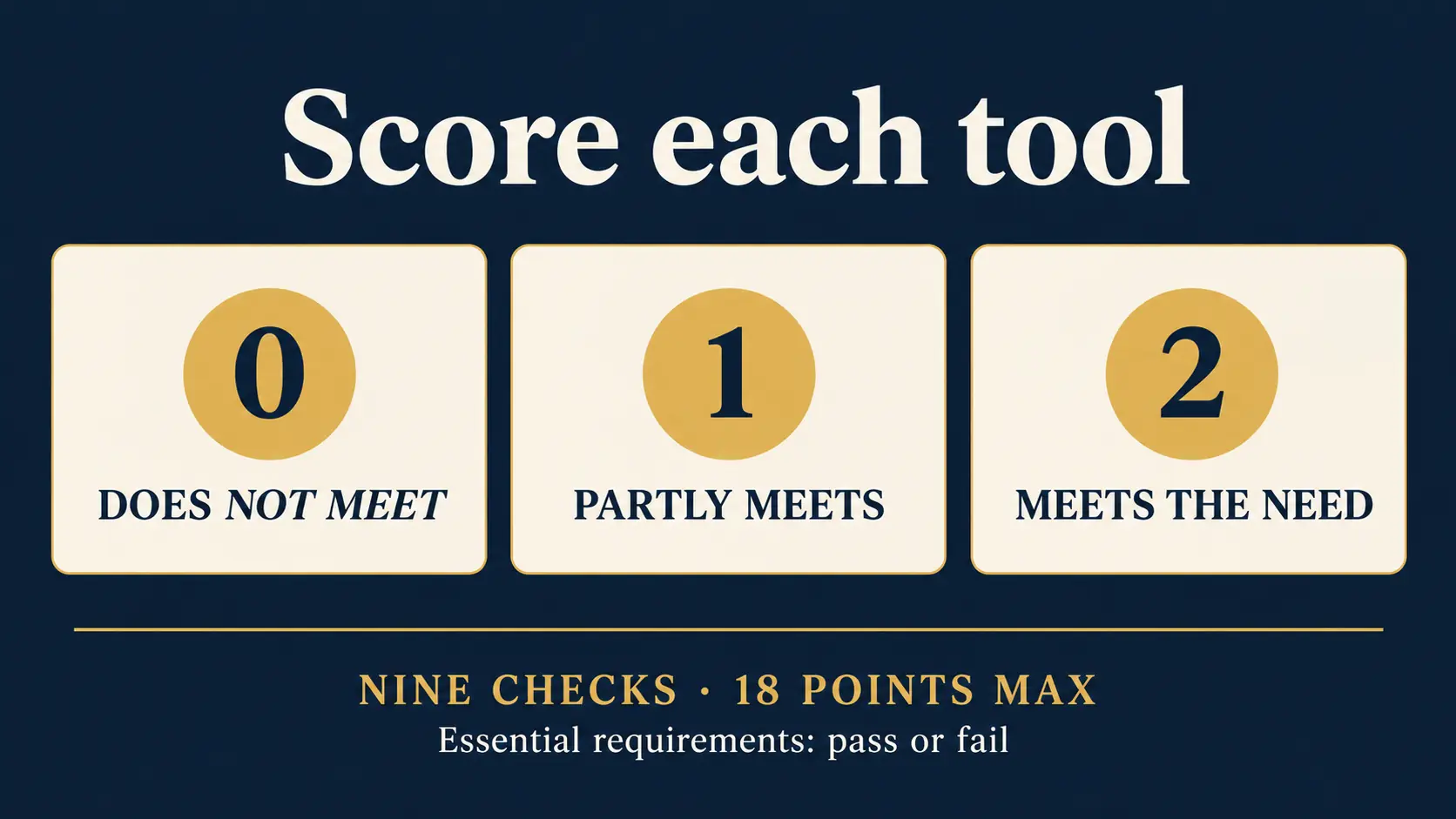
| What to test | Tool A | Tool B | Tool C |
|---|---|---|---|
| Technician can complete a report in the field | |||
| Job details and work performed are clear | |||
| Photos are connected to their captions and work | |||
| Completed and open work are easy to distinguish | |||
| PDF is readable and suitable for its intended reader | |||
| Office can find reports and follow up | |||
| Data export, access, and retention answers are clear | |||
| Platform fits the devices your team uses | |||
| Price and plan limits fit the expected use | |||
| Total (out of 18) | |||
| Essential requirements pass or fail |
Ask technicians and reviewers for specific feedback. “The materials field was hard to find” is more actionable than “the app felt difficult.”
Questions to ask every vendor
- Can you demonstrate this workflow on a job like ours?
- Which devices and platforms are supported for field capture?
- What happens when connectivity is unavailable?
- What is included in the plan we are considering?
- How can we export our reports and evidence?
- What happens to our data and access if we leave?
How Fieldnox answers these questions
These details describe the Fieldnox web product checked for this guide. Confirm current availability before making a buying decision.
- Field platform: Field capture is currently provided through the Android app. Reports can be reviewed in the web workspace.
- Report review and PDF: Signed-in users can review work, evidence, and signatures in the reports workspace and prepare the final PDF.
- Public PDF preview: A public sample export from Fieldnox is not currently available. You can review a public report template and completed example; accessing Fieldnox reports requires sign-in.
- Plans and billing: The pricing page describes planned launch prices and limits. Trials, billing, and plan limits are not active yet.
- Offline behavior, retention, export beyond report PDFs, and detailed access controls: These details are not yet specified in the public product information reviewed for this guide. Ask Fieldnox for confirmation before relying on them.
A practical decision rule
A tool may fit when technicians can complete reports consistently, reviewers can understand the work and evidence, and your team has clear answers about access, exports, retention, and cost.
Keep evaluating if reports require extensive manual cleanup, open items are difficult to identify, essential devices are unsupported, or important data and plan questions remain unanswered.
Frequently asked questions
Can spreadsheets or forms work instead of report software?
Yes. A template, form, or spreadsheet can work for a small and straightforward process. Consider software when organizing reports, evidence, or follow-up becomes difficult to manage consistently.
How long should a pilot last?
Use a pilot long enough to complete representative jobs and collect feedback from technicians and reviewers. A practical starting point is for each participating technician to complete one routine job and one job requiring follow-up. The right duration depends on job frequency and variety.
What should field service report software include?
That depends on your work. Common needs include job identification, findings, work performed, relevant evidence, completion status, and next steps. Use your own reports and handoff requirements to decide which fields are essential.
Is report software the same as field service management software?
Not necessarily. Some products focus on work documentation and reports; broader platforms may also handle scheduling, dispatching, customer management, or invoicing. Verify the specific workflows each product supports.
How should I compare field service report apps?
Test each option on the same representative jobs. Score the technician workflow, report clarity, evidence, PDF, office follow-up, data controls, platform fit, and total cost.
FIELD REPORTING WORKFLOW
See whether Fieldnox fits your reporting workflow.
Fieldnox pairs an Android field app with a web reports workspace. Signed-in users can review work, evidence, and signatures before preparing the final PDF. Fieldnox focuses on field reporting; teams seeking a complete dispatching or invoicing platform should compare those needs separately.
Start with the public report template and completed example, then use the reports workspace to review the signed-in workflow.
Explore Fieldnox reportsSign-in is required to access Fieldnox reports.